Live remote desktop
A real-time view of the remote screen with pinch-to-zoom and panning. Screen resolution changes on the server are picked up automatically.
 Android · Remote desktop
SysOp is a native VNC client for Android. Connect to any RFB 3.8 or TightVNC server, see your screen live, type, click, scroll and move files — over your own network, with nothing in between.
Package dev.svsarts.sysop · Version 1.0.4 · Free
The RFB protocol is implemented from scratch and runs on a background thread, so the interface stays smooth even while large screen regions are being decoded.
A real-time view of the remote screen with pinch-to-zoom and panning. Screen resolution changes on the server are picked up automatically.
Tap, drag, hover and scroll-wheel events are all forwarded, so right-click menus, drag-and-drop and long documents behave normally.
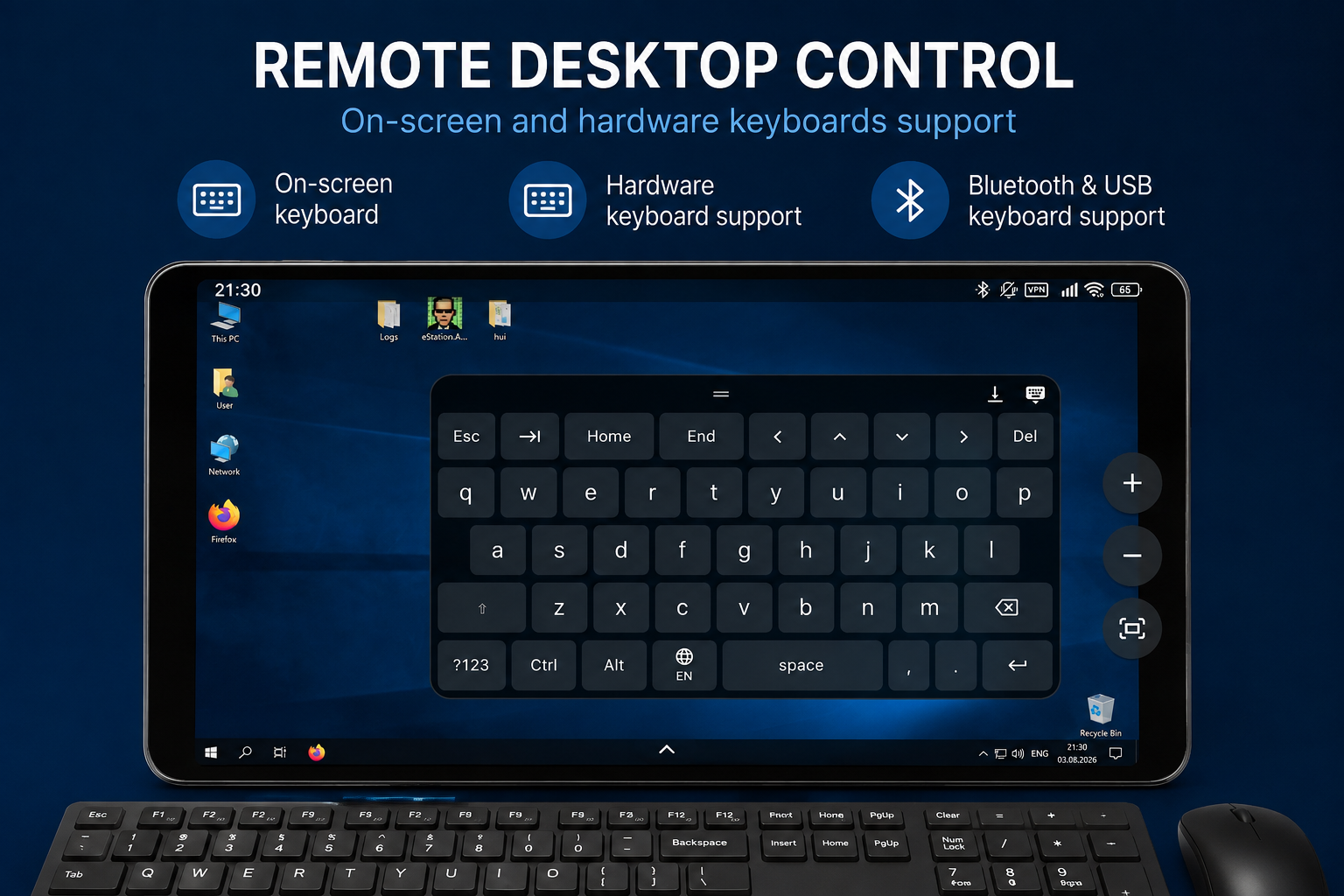
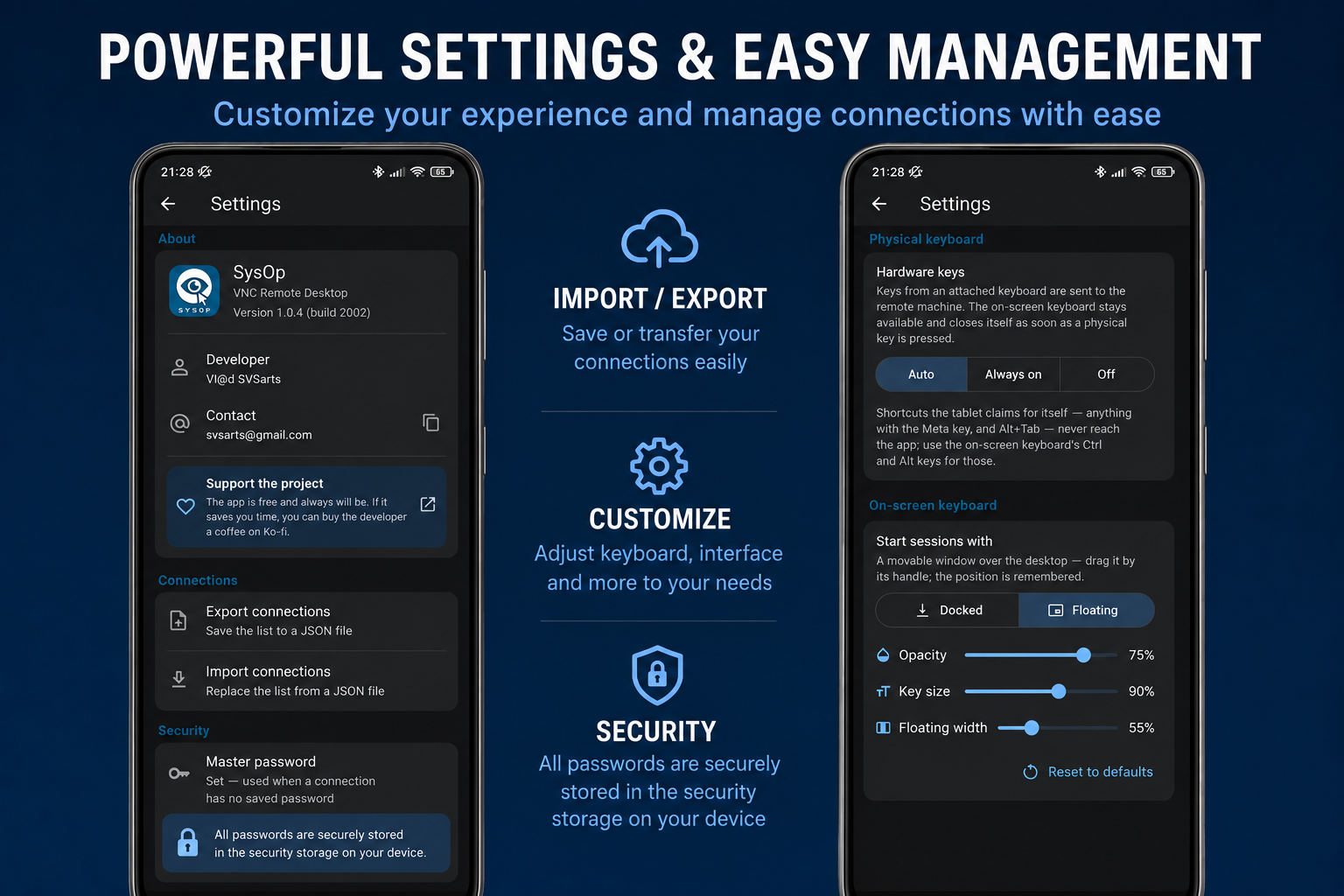
Dock the keyboard at the bottom — the desktop slides up so nothing is hidden — or float it in a draggable window. Key size, width and opacity are all adjustable.
Keyboard covers, Bluetooth and USB keyboards send proper X11 keysyms with working Ctrl and Alt shortcuts, including a Ctrl+Alt+Del button.
Browse remote folders and upload or download files with a progress indicator, using the TightVNC 2.x file-transfer extension over the same connection.
Copy text on the desktop and paste it on the phone, or the other way round — the clipboard is synchronised in both directions.
Saved connections keep their password in the hardware-backed Android Keystore. Passwords are never written to logs and never leave your device except to the server you chose.
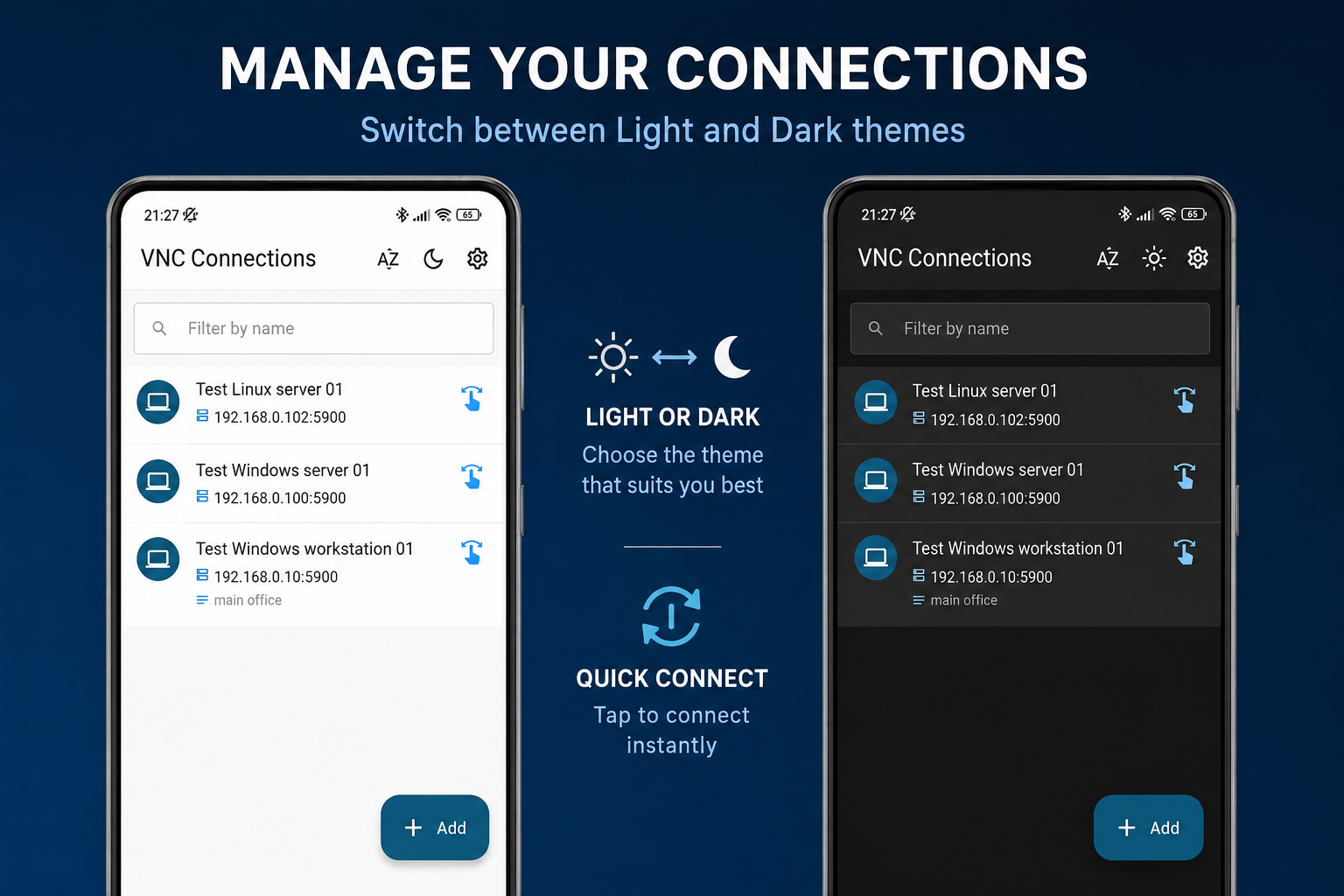
A modern Android interface with light and dark themes, dynamic layouts for tablets and full-screen session mode.
SysOp speaks RFB 3.8 (RFC 6143) and negotiates the TightVNC security type when the server offers it. All common encodings are supported, so the app picks the fastest one your server can provide.
| Encoding | Support | Notes |
|---|---|---|
| Tight | Preferred | Fill, JPEG and basic filters over four persistent zlib streams |
| ZRLE | Supported | Persistent zlib stream, all tile types |
| Hextile | Supported | All sub-encoding mask bits |
| CopyRect | Supported | Overlap-safe framebuffer copy |
| Raw | Supported | Fast path for the 32-bit pixel layout |
TightVNC, TigerVNC, RealVNC or the VNC service built into your system will do. Note the port it listens on — 5900 by default.
Let incoming TCP traffic reach the VNC port on your local network, and set a server password if the server asks for one.
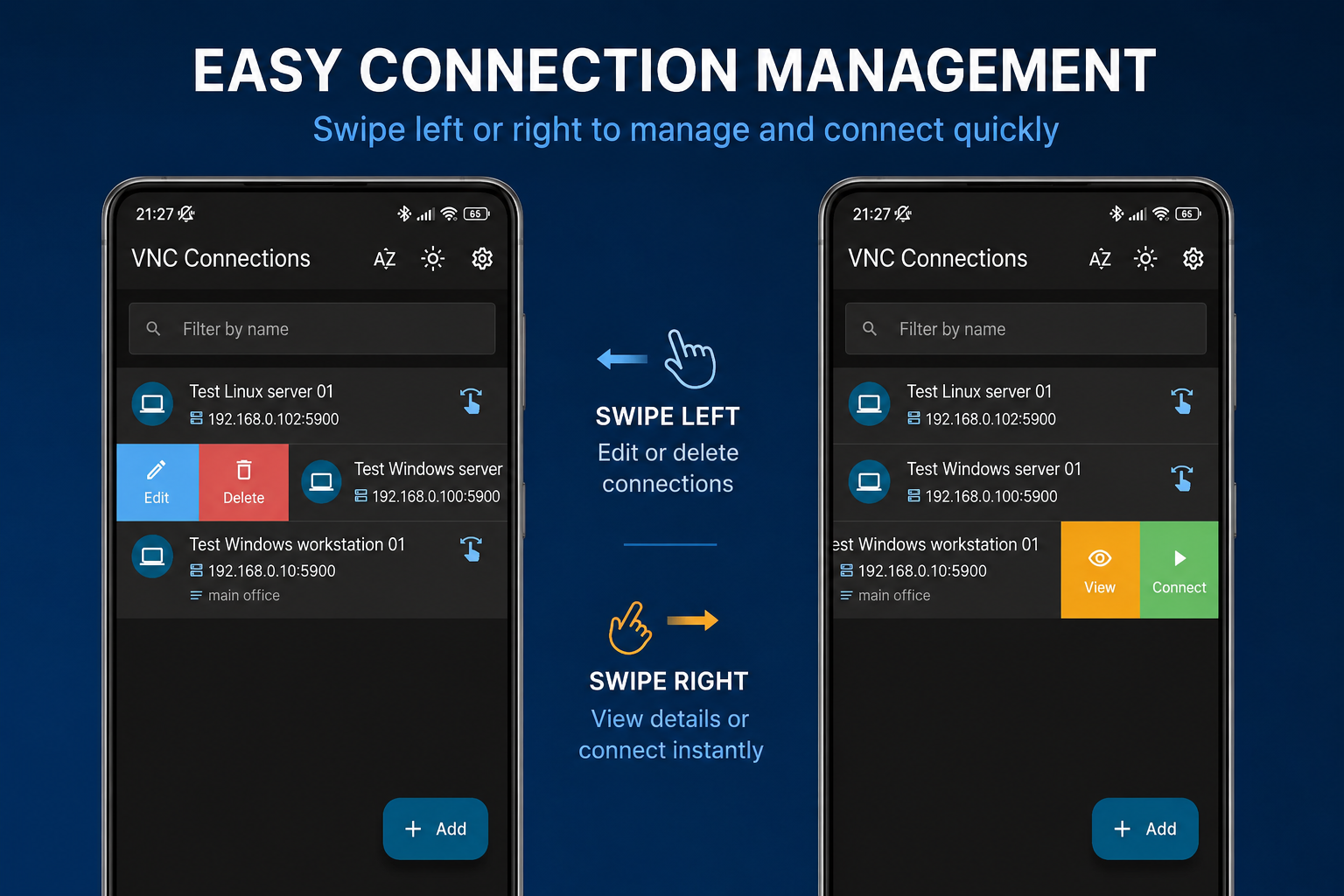
Tap +, enter a name, the computer's IP address, the port and the password. The password is stored in the Android Keystore.
Tap the saved connection. Pinch to zoom, open the on-screen keyboard from the toolbar, or switch to the file browser to move files.
Working over the internet? VNC authentication is DES-based and the protocol itself is unencrypted. Tunnel the connection through a VPN or SSH rather than exposing port 5900 to the open internet.
SysOp has no servers, no accounts and no analytics. The only network traffic the app creates is the connection to the VNC server whose address you typed in yourself.
No. The app is free, has no advertising and contains no in-app purchases or subscriptions.
It is the only permission the app requests, and it exists so the app can open the TCP socket to your VNC server. Nothing else is contacted.
In almost every case the VNC server is not running, the firewall blocks the port, or the phone is on a different network than the computer. The troubleshooting guide walks through each case.
File transfer is a TightVNC extension, not part of standard VNC. SysOp detects whether the server advertises it during the handshake and disables the feature when it isn't available.
The RFB protocol transmits in clear text and its authentication is DES-based, which is weak by modern standards. This is a property of VNC itself, not of SysOp. Use a VPN or an SSH tunnel on any network you do not trust.
Install SysOp, add your first connection and your desktop is one tap away.